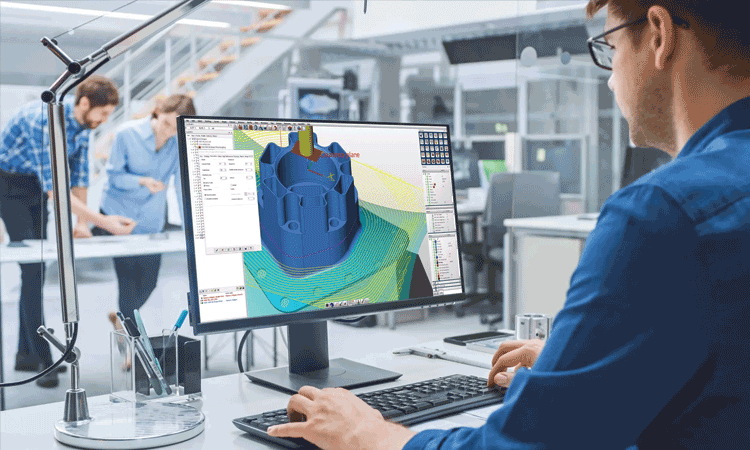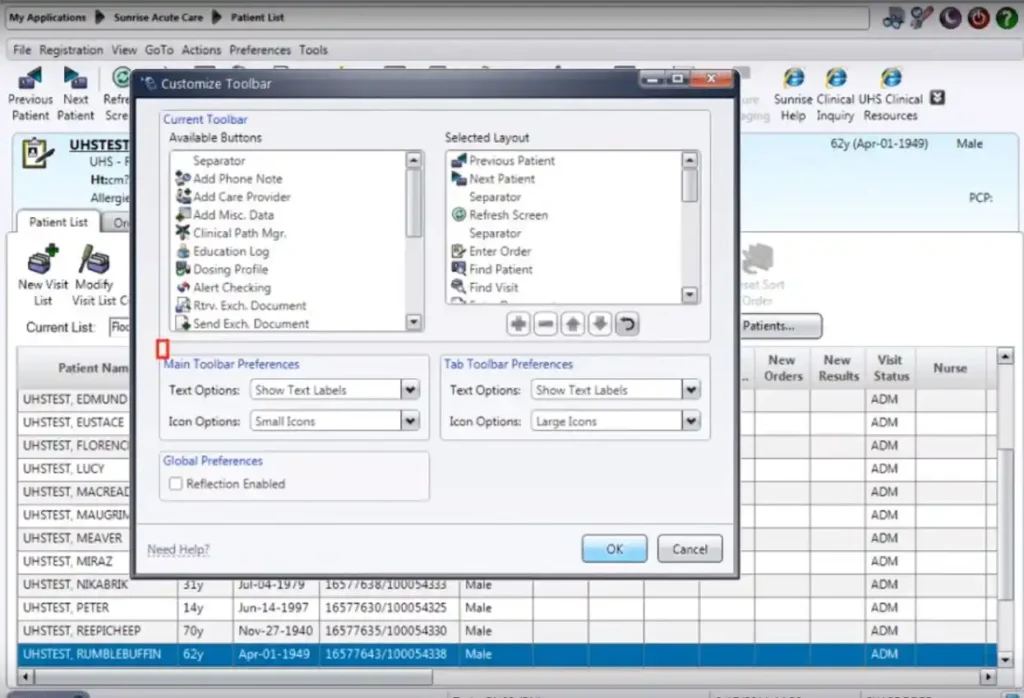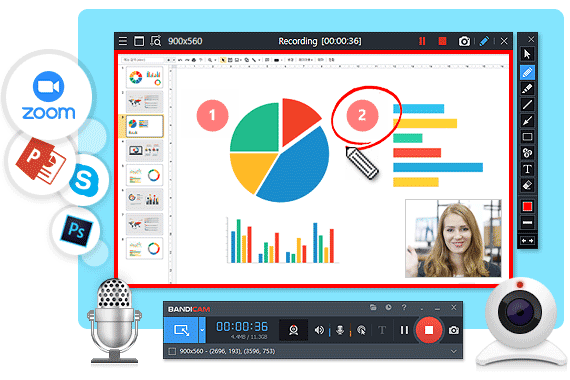
Screen recording has become an essential part of digital communication, online education, content creation, software demonstrations, remote work, and technical support. Whether you’re creating video tutorials, recording webinars, capturing gameplay, or sharing presentations, reliable screen recording software makes the process simple and professional.
Modern screen recording software allows users to capture their computer screens, webcam, system audio, and microphone simultaneously. Many solutions also include built-in video editing, annotations, AI-powered enhancements, cloud storage, and live streaming capabilities. From students and educators to businesses, gamers, and YouTube creators, screen recording tools help communicate ideas clearly and efficiently.
This comprehensive guide explains everything you need to know about screen recording software, including its features, benefits, types, use cases, buying tips, best practices, and how to choose the right screen recorder for your workflow.
What Is Screen Recording Software?
Screen recording software is an application that captures everything displayed on a computer or mobile device screen and saves it as a video file. Many programs also record webcam footage, system sound, microphone audio, and mouse movements to create professional-looking videos.
Screen recording software is commonly used for:
- Video tutorials
- Online courses
- Software demonstrations
- Business presentations
- Product walkthroughs
- Technical support
- Gameplay recording
- Webinar recording
- Employee training
- Customer onboarding
- Virtual meetings
- Educational content
Instead of explaining processes through text alone, users can visually demonstrate each step, making information easier to understand.
Why Is Screen Recording Software Important?
Video has become one of the most effective ways to communicate information. Screen recording software allows individuals and organizations to create visual content that is engaging, informative, and easy to follow.
Key benefits include:
- Simplifies complex explanations
- Improves online learning
- Enhances customer support
- Saves time on repetitive demonstrations
- Increases audience engagement
- Improves remote collaboration
- Supports asynchronous communication
- Creates reusable training materials
- Helps document software processes
- Builds professional video content
As remote work and digital learning continue to grow, screen recording software has become a valuable productivity tool.
Types of Screen Recording Software
Different recording tools are designed for different purposes.
1. Desktop Screen Recorders
Desktop applications provide advanced recording features for Windows, macOS, and Linux computers.
Common features include:
- Full-screen recording
- Window recording
- Custom area recording
- Audio capture
- Webcam recording
- Video editing
2. Browser-Based Screen Recorders
Browser screen recorders work without installing software and are ideal for quick recordings.
Benefits include:
- Easy access
- Cloud storage
- Fast sharing
- Cross-platform compatibility
3. Mobile Screen Recording Apps
Mobile applications allow users to record smartphone or tablet screens for tutorials, gameplay, app demonstrations, and social media content.
4. Game Recording Software
Gaming-focused screen recorders optimize performance while capturing high-quality gameplay with minimal impact on frame rates.
Key Features of Screen Recording Software
Choosing the right software requires understanding its core features.
High-Quality Screen Capture
The best tools support HD, Full HD, 4K, and even higher-resolution recording while maintaining smooth frame rates.
Webcam Recording
Many creators combine webcam footage with screen recordings for tutorials, presentations, interviews, and online classes.
Audio Recording
Professional screen recorders capture:
- System audio
- Microphone input
- Multiple audio sources
- Noise reduction
Annotation Tools
Annotations help explain concepts using:
- Arrows
- Text
- Shapes
- Highlights
- Cursor effects
- Whiteboard tools
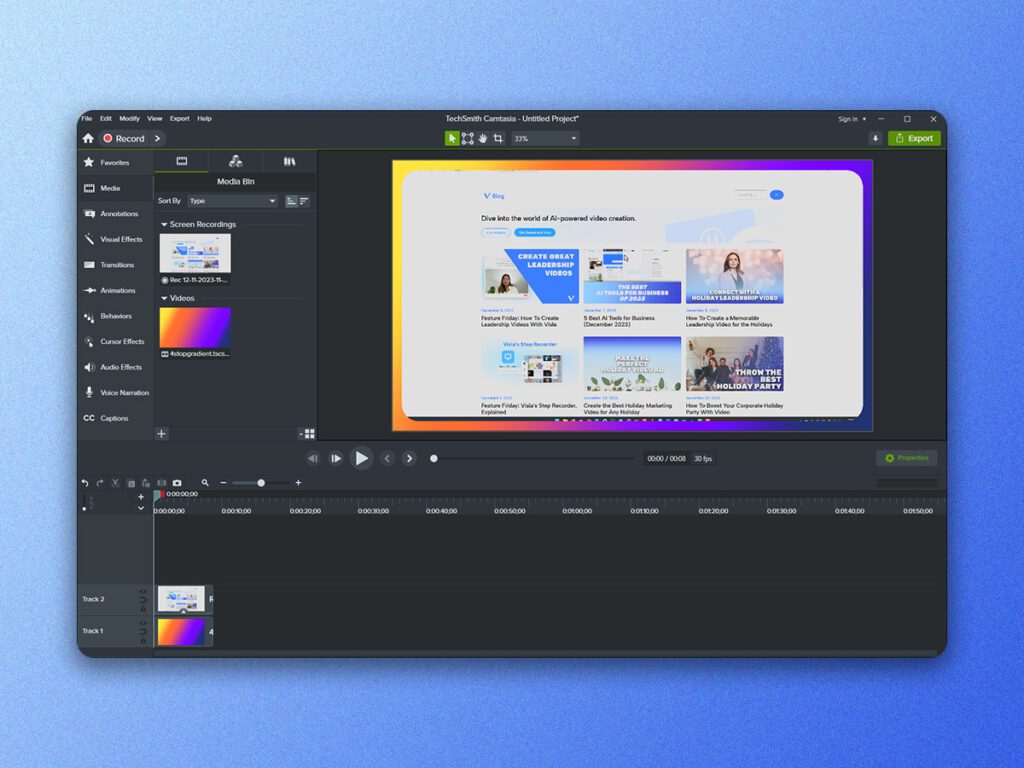
Built-in Video Editing
Many screen recording programs include editing features such as:
- Trimming
- Cutting
- Cropping
- Transitions
- Captions
- Background music
- Zoom effects
Scheduled Recording
Users can automatically record webinars, meetings, or live streams at specific times.
AI-Powered Features
Modern screen recording software increasingly includes AI capabilities such as:
- Automatic captions
- Background noise removal
- AI voice enhancement
- Smart editing
- Speaker tracking
- Auto transcription
- AI summaries
These features help creators produce polished videos with less manual effort.
Benefits of Screen Recording Software
Screen recording software offers significant advantages for individuals and organizations.
Better Communication
Video demonstrations are often easier to understand than written instructions.
Increased Productivity
Recording once allows the same tutorial or presentation to be reused multiple times.
Improved Learning
Students and employees can watch recordings at their own pace, improving comprehension and retention.
Enhanced Customer Support
Support teams can create step-by-step tutorials that reduce repetitive inquiries.
Professional Content Creation
Content creators can produce high-quality videos for YouTube, online courses, product reviews, and marketing campaigns.
Common Use Cases
Screen recording software is widely used for:
- Online teaching
- Employee training
- Product demonstrations
- Software tutorials
- Customer support videos
- Sales presentations
- Webinar recording
- Gameplay recording
- YouTube content
- Remote collaboration
- Bug reporting
- Technical documentation
- Virtual meetings
- Social media videos
- App demonstrations
Best Screen Recording Software in 2026
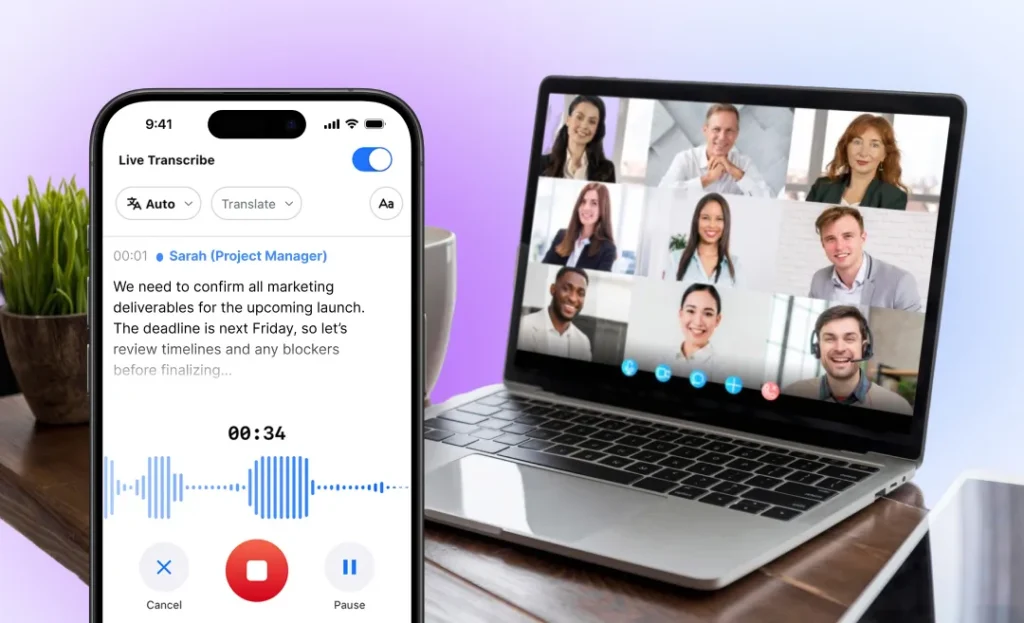
Choosing the best screen recording software depends on your workflow, operating system, budget, and recording requirements. Some tools focus on professional video production, while others are designed for quick recordings and online collaboration.
1. OBS Studio
OBS Studio is one of the most popular free and open-source screen recording and live streaming applications.
Best For
- Content creators
- Live streamers
- Gamers
- Professional recording
Key Features
- HD and 4K recording
- Unlimited recording time
- Multi-source capture
- Scene transitions
- Audio mixer
- Live streaming support
Pros
- Completely free
- Powerful customization
- Excellent video quality
- Active community support
Cons
- Steeper learning curve
- No built-in video editor
2. Camtasia
Camtasia combines professional screen recording with an easy-to-use video editor, making it ideal for tutorials and educational content.
Best For
- Online courses
- Employee training
- Business presentations
- Educational videos
Features
- Screen recording
- Webcam recording
- Video editing
- Annotations
- Cursor effects
- Templates
Pros
- Beginner-friendly
- Powerful editing tools
- Excellent export options
Cons
- Premium pricing
3. Loom
Loom focuses on quick screen recording and instant sharing for remote teams.
Best For
- Business communication
- Remote work
- Team collaboration
- Customer support
Features
- Cloud storage
- Instant sharing
- Webcam recording
- Viewer analytics
- Team collaboration
4. Bandicam
Bandicam is widely used for recording gameplay, presentations, and desktop applications.
Best For
- Gaming
- Software demonstrations
- High-performance recording
Features
- High FPS recording
- Hardware acceleration
- Scheduled recording
- Device recording
5. ScreenPal
ScreenPal is a versatile screen recorder with built-in editing tools suitable for educators, students, and businesses.
Features
- Screen recording
- Video editing
- Captions
- Hosting
- Cloud storage
6. ShareX
ShareX is a free Windows application offering advanced screen capture and recording capabilities.
Best For
- Developers
- Technical documentation
- Screenshot automation
7. Snagit
Snagit specializes in creating screenshots and short instructional videos for business users.
8. ScreenRec
ScreenRec is a lightweight screen recording application with instant cloud sharing and collaboration features.
Screen Recording Software Comparison
| Software | Best For | Free Version | Video Editing | Live Streaming |
|---|---|---|---|---|
| OBS Studio | Streaming & Recording | Yes | No | Yes |
| Camtasia | Professional Tutorials | Trial | Yes | No |
| Loom | Business Collaboration | Yes | Basic | No |
| Bandicam | Gaming | Trial | Basic | No |
| ScreenPal | Education | Yes | Yes | No |
| ShareX | Technical Users | Yes | Limited | No |
| Snagit | Business Documentation | Trial | Basic | No |
| ScreenRec | Quick Sharing | Yes | Basic | No |
How to Choose the Best Screen Recording Software
Selecting the right screen recorder depends on several important factors.
Recording Quality
Choose software that supports:
- HD recording
- Full HD
- 4K recording
- High frame rates
Higher quality recordings provide a more professional viewing experience.
Ease of Use
Beginners should prioritize intuitive interfaces and built-in tutorials, while professionals may prefer advanced customization options.
Editing Features
Built-in editing tools can save time by allowing users to:
- Trim videos
- Add annotations
- Insert transitions
- Include captions
- Highlight important areas
Performance
Efficient software minimizes CPU and memory usage while maintaining smooth recording performance.
Export Options
Look for software that supports common formats such as:
- MP4
- AVI
- MOV
- GIF
- WebM
Multiple export options improve compatibility across platforms.
Cloud Integration
Cloud storage simplifies sharing, collaboration, and backup while enabling access from multiple devices.
Industries That Use Screen Recording Software
Screen recording software is valuable across many industries.
Education
Teachers and instructors create online lessons, recorded lectures, and educational tutorials.
Business
Companies use screen recordings for:
- Employee onboarding
- Internal training
- Product demonstrations
- Customer support
Software Development
Developers record:
- Bug reports
- Software walkthroughs
- Feature demonstrations
- Technical documentation
Marketing
Marketing teams produce:
- Product videos
- Social media content
- Promotional campaigns
- Customer tutorials
Gaming
Gamers use screen recording software for:
- Gameplay videos
- Streaming
- Tutorials
- Reviews
Customer Support
Support teams create visual troubleshooting guides that reduce repetitive support requests.
Best Practices for Screen Recording
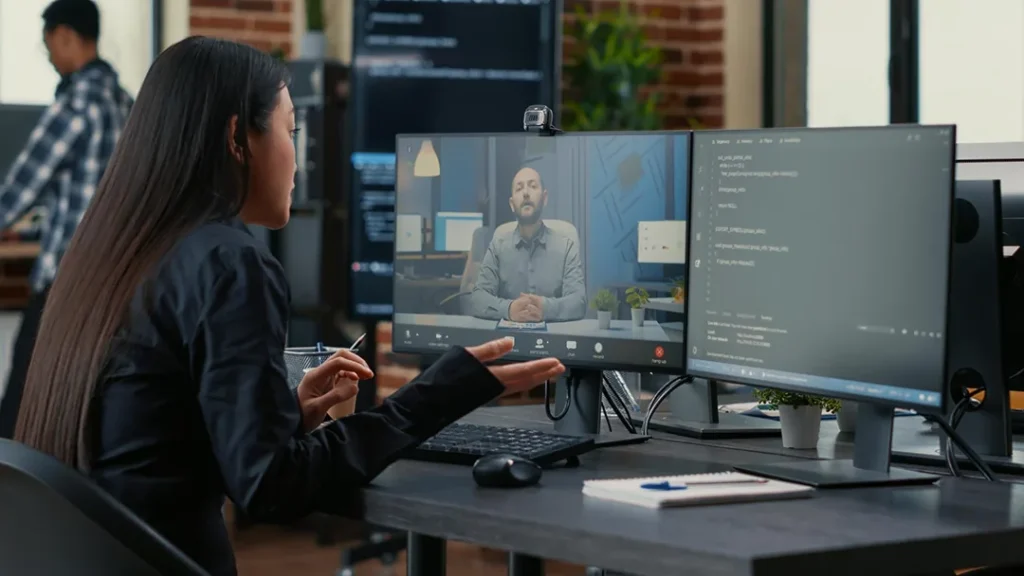
To create professional-quality recordings:
- Plan your content before recording.
- Write a simple script or outline.
- Use a high-quality microphone.
- Record in a quiet environment.
- Close unnecessary applications.
- Use proper screen resolution.
- Highlight cursor movements.
- Keep videos concise.
- Edit out mistakes.
- Add captions for accessibility.
Common Mistakes to Avoid
Avoid these common recording mistakes:
- Poor audio quality
- Low screen resolution
- Recording unnecessary desktop clutter
- Speaking too quickly
- Forgetting to test equipment
- Using inconsistent lighting for webcam recordings
- Making videos too long
- Ignoring video editing
Following these best practices helps create clear and engaging screen recordings suitable for professional and educational purposes.
AI and the Future of Screen Recording Software
Artificial Intelligence (AI) is changing how users create, edit, and share screen recordings. Modern screen recording software now includes intelligent automation features that reduce editing time and improve video quality, making professional content creation more accessible than ever.
Some of the latest AI-powered capabilities include:
- Automatic video editing
- AI-generated captions
- Speech-to-text transcription
- Background noise reduction
- AI voice enhancement
- Automatic chapter generation
- Smart video summaries
- Speaker detection
- Webcam background removal
- AI-powered content recommendations
These features allow educators, businesses, and content creators to produce high-quality videos more efficiently.
Future Trends in Screen Recording Software
As technology continues to evolve, screen recording software is becoming more intelligent, collaborative, and cloud-based.
Cloud Recording
Cloud-based platforms allow users to record, store, edit, and share videos without relying on local storage, making collaboration easier for remote teams.
AI-Powered Editing
Artificial intelligence will continue to automate repetitive editing tasks such as trimming silence, removing filler words, enhancing audio, and generating subtitles.
Real-Time Collaboration
Future screen recording solutions will support collaborative editing, comments, and feedback in real time, improving team productivity.
Interactive Videos
Interactive screen recordings with clickable elements, quizzes, and navigation features are becoming increasingly popular for online learning and employee training.
Better Security
Organizations are adopting secure cloud storage, encryption, access controls, and compliance features to protect recorded content and sensitive information.
Cross-Platform Integration
Modern screen recording software is integrating with project management tools, learning management systems (LMS), customer relationship management (CRM) platforms, and communication apps for seamless workflows.
Tips for Beginners
If you’re new to screen recording, these tips can help you create professional-quality videos:
- Choose software that matches your skill level.
- Plan your recording with a script or outline.
- Test your microphone and camera before recording.
- Record in a quiet environment to improve audio quality.
- Keep your desktop clean and organized.
- Use keyboard shortcuts to improve efficiency.
- Record short practice videos before starting a major project.
- Edit unnecessary pauses and mistakes.
- Add captions to improve accessibility.
- Export videos in a format suitable for your audience.
Consistent practice and attention to detail will help you create engaging, high-quality recordings.
Frequently Asked Questions
1. What is screen recording software?
Screen recording software is a tool that captures your computer or mobile screen and saves it as a video. Many applications also record webcam footage, microphone audio, and system sound for tutorials, presentations, and demonstrations.
2. What is the best screen recording software?
The best screen recording software depends on your needs. OBS Studio is ideal for free professional recording, Camtasia is excellent for editing tutorials, Loom is popular for business communication, and Bandicam is widely used for gameplay recording.
3. Is there free screen recording software available?
Yes. OBS Studio, ShareX, ScreenRec, and several other applications offer free screen recording features with excellent performance for personal and professional use.
4. Can screen recording software record audio?
Most modern screen recording software can capture system audio, microphone input, or both simultaneously. Many programs also include noise reduction and audio enhancement features.
5. What features should I look for in screen recording software?
Look for high-resolution recording, webcam support, audio recording, built-in video editing, annotation tools, cloud storage, AI-powered features, multiple export formats, and easy sharing options.
Conclusion
Screen recording software has become an essential tool for educators, businesses, content creators, gamers, and remote teams. It simplifies communication by allowing users to create professional tutorials, product demonstrations, training materials, and presentations with ease. Choosing the right software depends on your recording needs, editing requirements, budget, and preferred features. As artificial intelligence, cloud technology, and real-time collaboration continue to advance, screen recording software will become even more efficient and user-friendly. Investing in the right solution can improve productivity, enhance communication, and help you create engaging, high-quality video content for a wide range of applications.